Help & Information Centre

Live Help

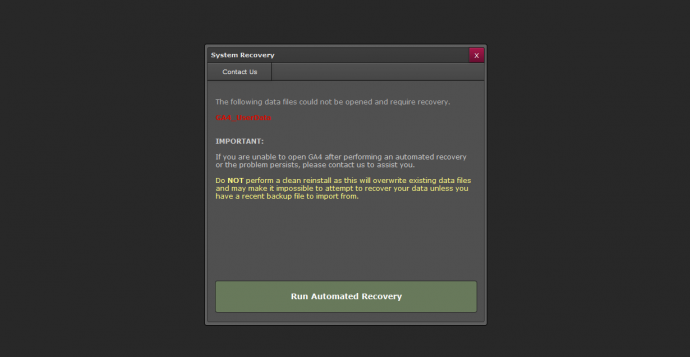
 Q. Recovery Command : The file is damaged or does not belong to this solution

Back PDF

If you suffer a power failure, windows crash or similar and Garage Assistant was loaded, when you next open it, the system will perform a consistency check, if this fails you may get a message stating

"The file mainmenu.sws is either not part of this solution, or damaged. Please run the recovery command."

This is a feature built in to help fix files automatically.


HOW TO USE THE RECOVER COMMAND  (SINGLE USER VERSION)

1. Make note of the damaged filename ('mainmenu' for GA2 or 'datafile_main' for GA3)
2. Hold down the CTRL & SHIFT keys on your keyboard whilst double clicking the program icon on your desktop
3. An open damaged file window will appear.
You must now browse to the program folder and select the damaged file

for example :

click > My Computer (to the left in the Open Damaged File Dialog)
double click > Local Disk (C)
double click > Garage Assistant V2 (or V3)

4. Then locate the filename 'mainmenu' for GA2 (or 'datafile_main' for GA3) and click open.

The file recovery will begin automatically and save the original file as mainmenu_old.sws (or datafile_main_old.sws) 

Please note, this is the original file, the repaired file will be mainmenu.sws


HOW TO USE THE RECOVER COMMAND  (NETWORK EDITION)

1. Make note of the damaged filename ('mainmenu' for GA2 or 'datafile_main' for GA3)
2. Click 'Start'
3. Double Click 'My Computer'
4. Double Click 'Local Disk C:'
5. Double Click 'Garage Assistant Server'
6. Locate and double click 'Filemaker Pro'
7. Once Filemaker pro has loaded, Click 'File'
8. Choose 'Recover'
9. An open damaged file window will appear. You must now browse to the program folder and select the damaged file

for example :

click > My Computer (to the left in the Open Damaged File Dialogue)

double click > Local Disk (C)
double click > Garage Assistant V2 (or V3)

10. Then locate the filename mainmenu  (or 'datafile_main' for GA3) and click open.

You will then be asked to provide the name to save the new file such as mainmenu_Recovered

11. Leave this named as it is and choose Save.
12. Wait a few minutes until the recovery is complete.
13. Go Back to the Garage Assistant Server Folder (steps 1 to 5)
14. Locate mainmenu (or 'datafile_main' for GA3)
    14a. Right click mainmenu
 (or 'datafile_main' for GA3) and choose rename

    14b. Rename to broken_mainmenu.fp7 or similar
15. Locate mainmenu_Recovered.fp7 or mainmenu_Recovered
    15a. Right click mainmenu_Recovered.fp7 and choose rename
    15b. Rename to just mainmenu.fp7 (or just mainmenu if you could not see the .fp7 originally)

Recover is now complete.


 If recovery was not succesful before doing anything else please contact us on 0844 357 0600, otherwise GA should load up as normal.


Save as PDF   Back to other articles