
Vehicle Health Checks
The ability to create, store, print, email and edit visual health checks online is now available within GA4, with a 35 point check list and notes for each, that you can customise (partially).
The health check system is accompanied by a cloud based web-app that can be used by your technicians to fill out the information, make notes, and upload photos of the vehicle using a mobile device, which later syncs down into GA4 for storage and use.
There's no hardware requirement other than it having a web-browser and preferably a camera if you do want to take photos as part of the health check.
To get started, configure the options via, Admin > Configuration > Visual Health Check Settings
Here you can enable the cloud module, customise the names for the health check items and set or change the access pin.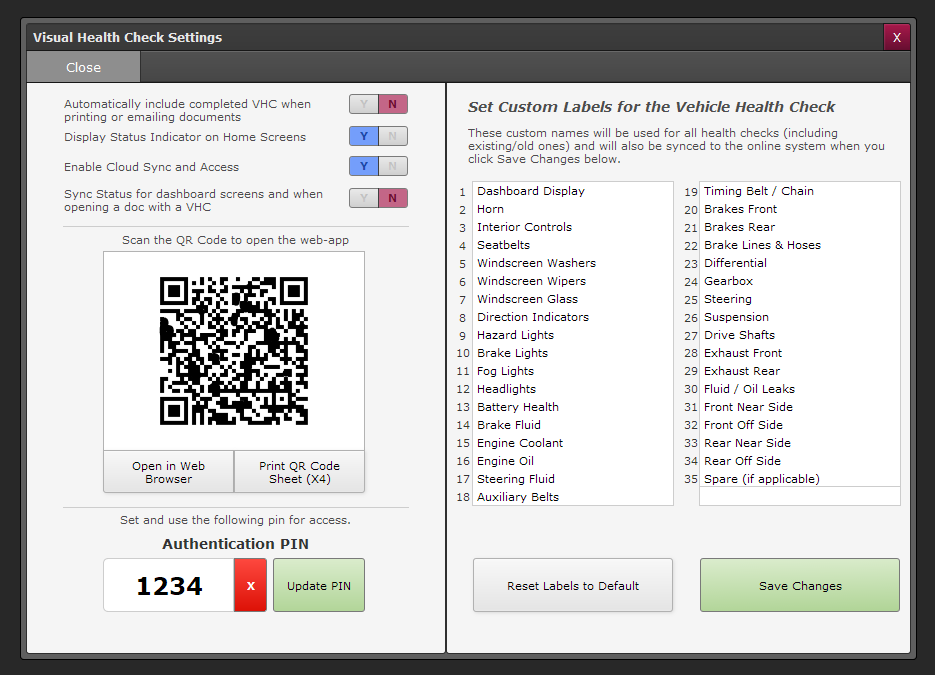
Note: the QR code above is not a valid QR code.
The second option to display an indicator turns on the following indicator for documents that have a health check record. It's colour coded with the status of the health check:
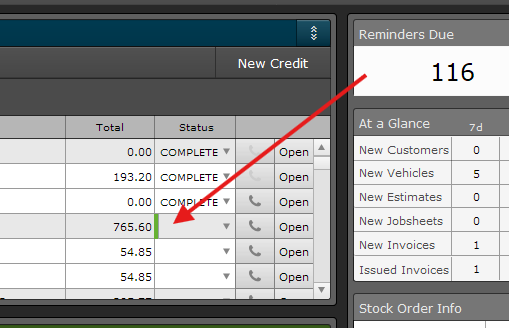
Enable cloud sync and access - this option enables the cloud functionality so the health checks can be edited on an external mobile device, such as a phone or any tablet with a web browser. More on this below.
The fourth option: Sync Status for dashboard screens and when opening a doc with a VHC
If cloud sync is enabled, this will periodically check if the status of any VHC records change from Pending / In Progress or Completed and update the indicator shown above and / or the colour of the button on the documents screen.
Then of course, you can also change the names of each checklist item as required.
If you want some different items but there's no space, you could always combine / group some from our initial setup, i.e Exhaust, instead of Exhaust Front and Exhaust Rear.
Using the health check system
Whether its via an external device or just within GA4, health check record must be created first within GA4 directly. It's not possible to create a new record via the web-app, since it wouldn't know where to sync it down to. Creating it from within GA4 allows it to reference the document, registration and technician.
In GA4, when you open a document (Job sheet, Estimate, Invoice) there's a "Health Check" button below the vehicle details. Clicking "Health Check" will create the record for use. You can also delete it from this screen if its unwanted.
Once created, it can be edited within GA4 and saved directly, or it can be edited online via the web-app. The simplest way to gain access to it, is to scan the QR code provided (or print them out to be scanned). You can then bookmark the page and should only need to use the QR code again if you haven't accessed the system within 30 days.
On the initial page, you should see your company name and a prompt to enter your pin.
You will then need to enter the pin that is specified on the configuration page to access the data, but from that it should be very self explanatory to use. It has also been designed with phones and tablets in mind.
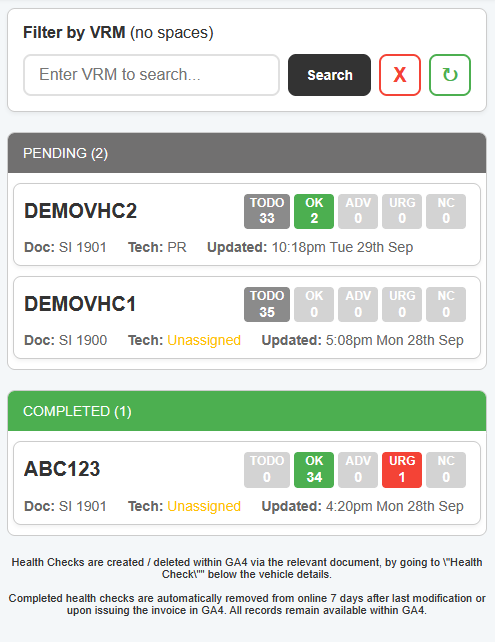
The main menu screen with an example list of 3 vehicles.
The detail screen, editing one of the health check records:
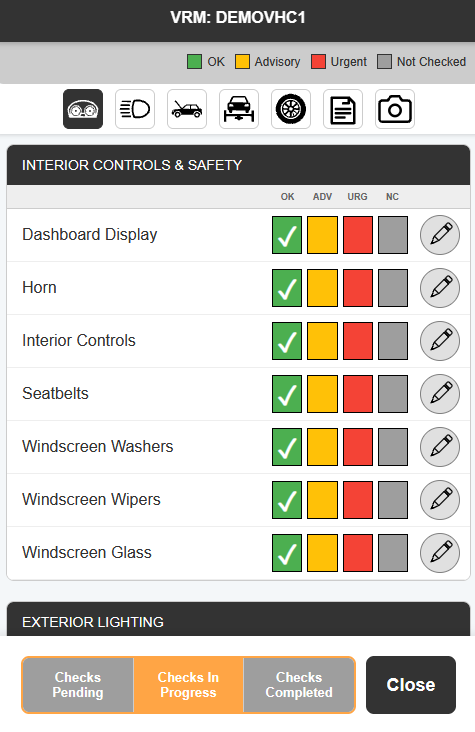
When editing online the changes are saved almost immediately, although its recommended to click close to ensure a final save, due to potential connection issues on mobile devices. Likewise, when uploading photos, make sure they finish and show on the device as a preview.
When editing within GA4, the changes only save when you click the save option.
Note: If its edited simultaneously by two users, the first that saves is the data that is retained, the other will notify and refresh to load the new data.
Health check records will be removed from the "completed" list when you issue the invoice within GA4, this data will then be cleared from our servers within days (although can be created from GA4 again if needed) since GA4 will be the permanent storage location, our server is simply acting as a middle man.
Additional features that complement the health check
If you make use of the photo section, any photos uploaded via the web-app or added in GA4 go into the vehicle attachments section.
When emailing your customer, these attachments can now be added directly to the email
On the email screen, to the right hand side you will find "Vehicle Att", this is where all vehicle attachments including health check photos are stored. You can select multiple attachments then "Add Selected" to add them to the email for sending.
The vehicle health check will auto-attach (without photos) if its status is set to completed as part of the invoice issue process, such as choosing the "Issue & Email", or "Issue, Print & Email" options.
Used for our own internal search: Health Check, Healthcheck, checklist, vehicle inspection
Print Back to other articles