
Windows Font Cache Fix - Corrupt Fonts
If Garage Assistant starts printing or saving PDFs in what is often described as "the wrong language" or having "strange characters", or its display turns dark with no visible definition for buttons on the user interface, the issue is usually caused by Adobe Acrobat Reader. Certain PDFs can trigger font substitution, which may corrupt the Windows Font Cache. When this happens, it affects how some system fonts are displayed, leading to the symptoms shown below.
The screens appear dark without any definition or variety of shading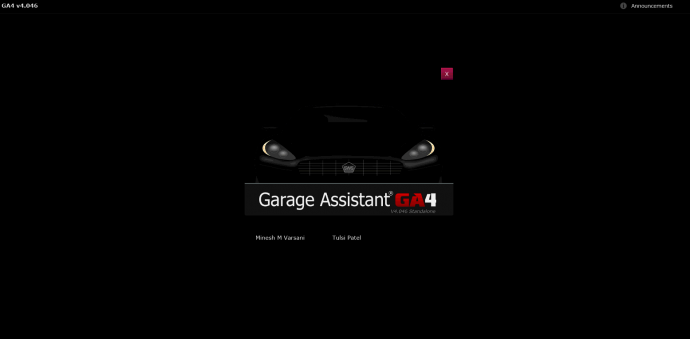
When it should appear as displayed below: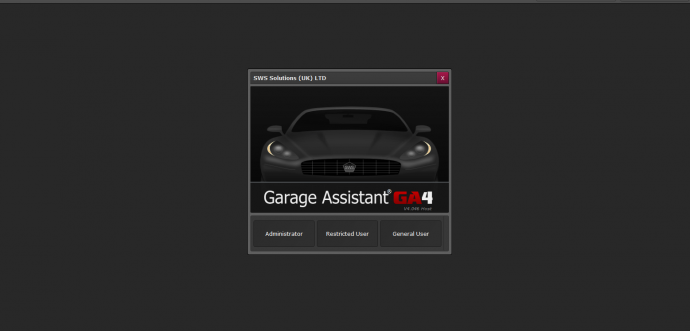
How to Fix:
- Open Windows File Explorer
- Go to This PC > Local Disk (C:) > Windows > System 32
- Locate the file named FNTCACHE.DAT - Type: DAT FILE
Make sure it is in all CAPITALS as highlighted in yellow below and NOT the FntCache.dll file listed alongside it.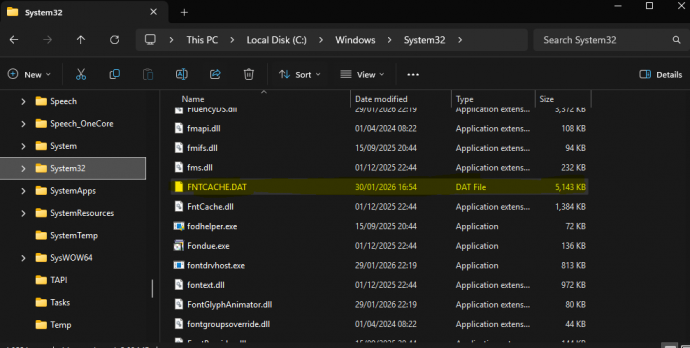
- Delete or rename FNTCACHE.DAT
- Reboot the machine
- After a restart, windows will re-create a fresh version of the file.
DAT File. It is usually in all capitals, FNTCACHE.DAT
Do NOT delete FntCache.dll (Type: Application Extension). Removing this file can cause system problems.
To help prevent it occurring in the future
If you don't make use of specific Adobe Acrobat reader functions, then it may be best to associate PDF's to open with Microsoft Edge instead. The issue will no longer surface, if this is the case.
To do this,
- Right click a PDF,
- Choose "Open With"
- Click on "choose another app" (even if the app is listed).
- Choose Microsoft Edge,
- Then at the bottom, choose Always.
incorrect colours, flat display, foreign language, corrupt font, random characters, strange text, unreadable
Print Back to other articles